Top Bar
The top bar provides navigation controls, quick search, and access to help and messages.
Sidebar Header
 Clicking the main sidebar header will cycle through the following display options:
- Small icon and text
- Large icon with text
- Large icon only
- Large icon with text beneath
- Text only
Quick Search
You can enter keywords in the search bar to find Locations/Assets, Alarms, Tasks, Task Templates, and People. To target a specific type of object to be searched, you can optionally click on the button and select from the available quick-search fields.
A prefix will be inserted in the search bar. You can enter keywords after the colon, and the results will include items that match the selected field and object.
To target a specific type of object to be searched, you can optionally click on the button and select from the available quick-search fields.
A prefix will be inserted in the search bar. You can enter keywords after the colon, and the results will include items that match the selected field and object.
Your Profile
 To view your Profile page, click on the button in the toolbar where your name and profile image appear.
Messages
 The Messages button displays the number of unread messages.
Clicking the button will take you to the Messages page.
Help
 To view contextual help documentation for the current page, click the Help icon
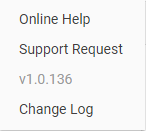 You can also click the arrow to display the Help menu:
- Online Help - This option has the same result as clicking the Help icon
- Support Request - Open a support ticket by filling out the form
- Version - Displays the current application version
- Change Log - View a summary of recent updates and bug fixes
top